
A slow PC does not always mean the computer is finished. Common causes include a full drive, too many startup apps, Windows Update, cloud sync, malware, limited RAM, a mechanical hard drive, heat or a Windows installation that needs cleanup. The right order protects both time, money and files.
This guide is written for current Windows 11. Windows 10 reached end of support on October 14, 2025, so for compatible machines Windows 11 is normally the right direction. Before reinstalling, resetting or buying parts, find out whether the slowness comes from software, storage, heat or genuinely weak hardware.
1. Stop first if data or hardware is at risk
Do not start with reset, reinstall, disk repair or heavy tests if the hard drive clicks, the PC freezes during copying, the drive disappears from BIOS, the machine gets extremely hot, smells burnt, has a swollen battery, had liquid inside, or contains important files without backup. More testing can make a possible recovery harder.
Also check BitLocker before changing the drive, BIOS/UEFI, Secure Boot, TPM or reinstalling Windows. Go to Settings > Privacy & security > Device encryption, or search for BitLocker in the Start menu. If you do not have the recovery key and the files matter, bring the PC to EasyPC for a diagnosis before trying more.
2. Find the bottleneck in Task Manager
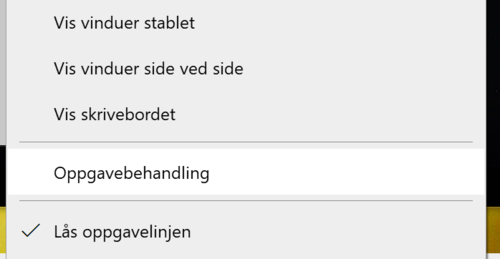
Press Ctrl + Shift + Esc. On the Processes tab, sort by CPU, Memory, Disk and GPU while the PC sits idle for one minute. High CPU can be Windows Update, browser tabs, antivirus, Teams, game launchers or a stuck app. Disk at 100 percent over time often points to a mechanical hard drive, low free space, sync, Windows issues or a weak drive. Memory near 100 percent means Windows has to swap more data to disk, which makes everything feel slow.

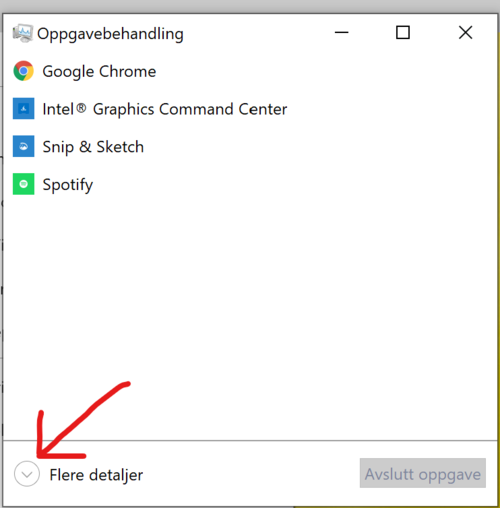
Also open the Performance tab. It shows how much memory the machine has, whether the drive is shown as HDD or SSD, and whether CPU, memory or disk stays high even without heavy apps. Write down what is high before changing things. If everything is low but the PC still feels slow, also consider heat, drive health, drivers and Windows errors.
3. Install the right updates and check device health
Go to Settings > Windows Update > Check for updates. Restart if Windows asks for it. Then open Advanced options > Optional updates and look for relevant driver updates. Do not install random drivers from unofficial websites, and do not update BIOS if the machine is unstable, overheats or lacks backup and a BitLocker key.
Open Windows Security > Device performance & health. Windows can warn about storage, battery, apps/software and some system services there. Also go to Windows Security > Virus & threat protection and run at least a Quick scan. Use one serious security product at a time; multiple antivirus tools at once can slow the PC and cause conflicts.
4. Free storage without deleting the wrong files
Go to Settings > System > Storage. If the C: drive is almost full, Windows becomes slower and updates may fail. Use Cleanup recommendations and Temporary files carefully. Read the categories before deleting, and be extra careful with Downloads, OneDrive folders, accounting files, photos, projects and email archives.
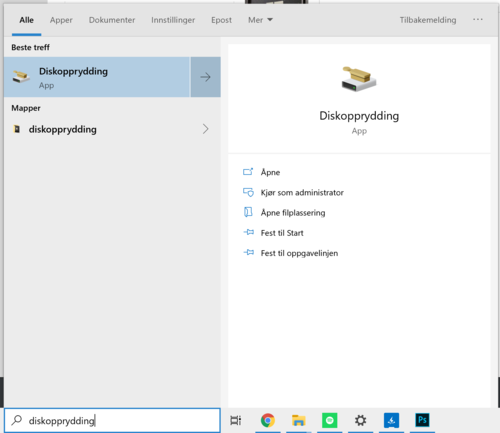
Uninstall apps you recognize and do not use from Settings > Apps > Installed apps. Avoid aggressive cleanup utilities that promise miracles. They can remove the wrong things, install extra software or make troubleshooting harder. If you need to move large files, copy them to an external drive first and open a few files from the copy before deleting the originals.
5. Reduce startup apps and background activity
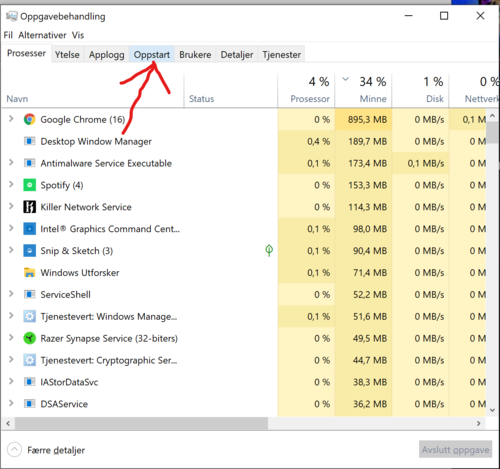
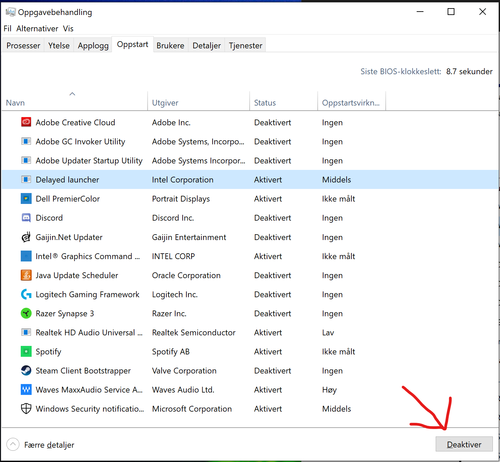
In Task Manager, choose Startup apps. Disable only apps you recognize and do not need as soon as Windows starts, such as game launchers, chat apps, update helpers or cloud sync you do not use. Do not disable security software, touchpad, audio, display driver or manufacturer tools unless you know what they do.
If one specific app always uses CPU or memory in the background, go to Settings > Apps > Installed apps, open advanced options if the app has them, and limit background permission. On a work or school PC, some choices may be managed by the organization.
6. Check power mode, heat and fan noise
On a laptop, go to Settings > System > Power & battery > Power mode. Recommended is often best for normal use. Best performance can create more heat, more fan noise and shorter battery life. If the PC is slow because it is hot, more performance does not necessarily help. Use the PC on a hard surface and make sure vents are not blocked.
Dust, old thermal paste or a worn fan can make the processor slow down to protect itself. If the PC gets hot during light use, shuts down, the fan scrapes, it smells burnt or the battery is swollen, stop. A diagnosis is safer than opening a modern laptop without a model guide and the right tools.
7. When SSD or RAM actually helps
If the Performance tab shows that the system drive is HDD, an SSD is often the biggest practical upgrade. Startup, Windows Update, browsers and apps usually become much faster. Before replacing the SSD, protect the files, assess drive health and find the BitLocker key if encryption is enabled.
RAM helps when memory is actually under pressure. For basic use, 8 GB can work, but 16 GB is often more comfortable for many tabs, Teams, Office, photos and several apps at once. If the CPU is very weak, the drive is failing, the battery is bad or the machine does not support Windows 11 well, replacement may be better than upgrading.
Clicking sounds, hangs during file copy, SMART warnings, blue screens and missing files point toward storage failure. In that case, secure data before cloning, resetting or reinstalling Windows. Do not run heavy disk repairs just to try if the files matter.

8. Reset or reinstall is the last step
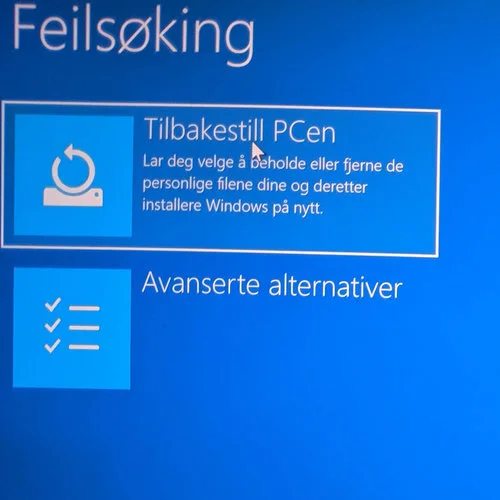
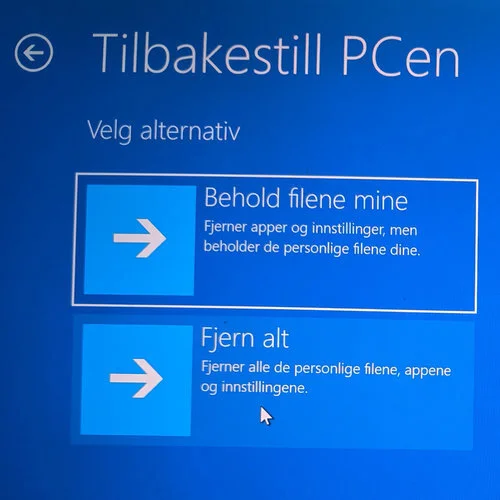
If Windows is full of old apps, errors, failed updates or strange drivers, reset or clean installation can help. But this comes after backup. Reset this PC with Keep my files removes apps and resets settings. Remove everything deletes files. A clean USB installation is more thorough and can erase everything on the selected drive.
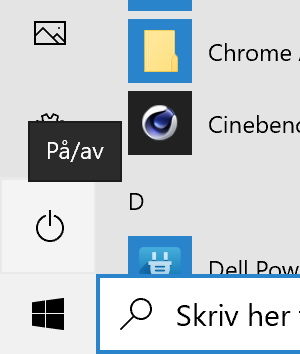
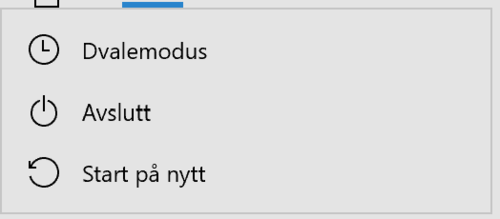
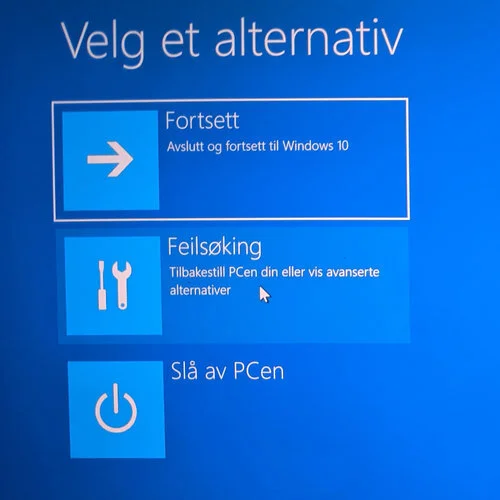
From Windows 11, go to Settings > System > Recovery > Reset this PC. If the PC does not start normally, hold Shift while choosing Restart, go to Troubleshoot, and then consider repair options. Do not choose reset, factory recovery or clean installation if important files are not copied to a safe place.
When EasyPC should assess the PC
Bring the PC in for a diagnosis if it is slow and also has important files without backup, a BitLocker key you cannot find, drive clicking, high heat, fan noise, liquid damage, swollen battery, blue screens or failed updates. We can separate Windows clutter, drive failure, heat, RAM, SSD needs and whether a new machine is actually the better choice.
Repair or upgrade is often worth it when the machine has a good screen, solid chassis, acceptable battery and a modern enough processor. If motherboard, battery, display and storage are all poor, or the machine cannot run the software you need, we should say so before you spend money on the wrong fix.