
OpenCore Legacy Patcher can run newer macOS versions on older Macs that Apple no longer supports through normal upgrade paths. It can make an older machine more useful, but it is not the same as official Apple support. Wrong model selection, missing backup, a FileVault key you do not have, a weak drive or the wrong EFI choice can make booting and data access harder.
As of June 2026, Apple lists macOS Tahoe 26 as the newest major version, with Sequoia, Sonoma, Ventura, Monterey and Big Sur as older versions. A Mac that is not on Apple’s compatibility list for the version you want should be treated as a risk project, not a normal system update.

1. Do not start before the backup is checked
Apple recommends backing up before installing new macOS software. Use Time Machine if the machine is stable: connect an external drive, open Apple menu > System Settings > General > Time Machine, choose Add Backup Disk and let the backup finish. Apple recommends a backup disk with ideally at least twice as much storage as the Mac.
If Time Machine asks to erase an external drive, that means the drive is being prepared as a backup disk. Do not choose a drive that contains the only copy of files you want to keep. If you choose encrypted backup, store the password safely; without it, the backup can be unusable when you need to restore.
Do not trust that a backup exists just because Time Machine is enabled. Open the backup disk and check the date of the latest backup. If you have critical documents, photos, accounting files or project data, also copy the most important files to a separate external drive or cloud storage. If the drive clicks, disappears, freezes during copying or the Mac already boots unreliably, stop and bring it to EasyPC for a diagnosis before more updating.
2. Check model, macOS version and FileVault
Find the exact model first: Apple menu > About This Mac. Then check which macOS is installed and whether Apple officially supports the version you want on that model. For a normal Apple-supported update, use Apple menu > System Settings > General > Software Update. OpenCore should be considered only when Apple does not provide the path you need.
OCLP's Supported Models page tells you to check Model Identifier in System Information. It also says OCLP applies to Intel-based Macs on the supported list, not Apple Silicon or PowerPC. Before OCLP, update the Mac to the latest official macOS it supports so firmware is as current as possible.
Check FileVault before changing boot, EFI or macOS: System Settings > Privacy & Security > FileVault. If FileVault is on and you do not know the password, iCloud access or recovery key, stop. Apple warns that if FileVault key and password are forgotten, files and settings can be lost forever.
3. When OpenCore is not a good first step
Do not use OpenCore as the first attempt if the real goal is file recovery, fixing a slow drive, hiding a heat problem, compensating for a weak battery or repairing a Mac that shuts down. Resolve hardware and data first. A more demanding macOS version can make a weak drive, low RAM, bad battery or clogged cooling more obvious.
Also wait if the Mac is used for critical work apps, music production, accounting, older Adobe or CAD software, printers/scanners or specialist equipment you have not checked against the newer macOS. Take photos of the app list, license keys, plug-ins and external devices before upgrading.
4. Use only the official OpenCore Legacy Patcher source
Download OpenCore Legacy Patcher from Dortania/GitHub, not random mirrors, video links or zip files in forum threads. First read the OCLP Supported Models page and known issues for the macOS version you want. The OCLP documentation says to read the FAQ, check that your model is supported and then follow the installation process.

Before installing to the internal drive: disconnect unnecessary external drives. That reduces the risk of selecting the wrong EFI partition. Installing OpenCore to the wrong disk can make troubleshooting more confusing, especially if you later replace a drive, use Time Machine or boot from USB.

5. After macOS update: root patches often need rerunning
If an OpenCore Mac was recently updated and suddenly loses Wi-Fi, Bluetooth, graphics acceleration, camera, Touch Bar/T1 functions or becomes unusually slow, the next check is often Post-Install Root Patch. OCLP explains that such root patches can be wiped by macOS updates and must be installed again afterwards.
Open OpenCore Legacy Patcher, check that the version supports the macOS version actually installed, and use Post-Install Root Patch if the app says it is needed. Some machines need networking to fetch packages such as KDK or MetallibSupportPkg. OCLP describes that in some cases the first patch run only gets Wi-Fi working, and the rest must be run again once internet is available.
6. Do not change SIP and security randomly
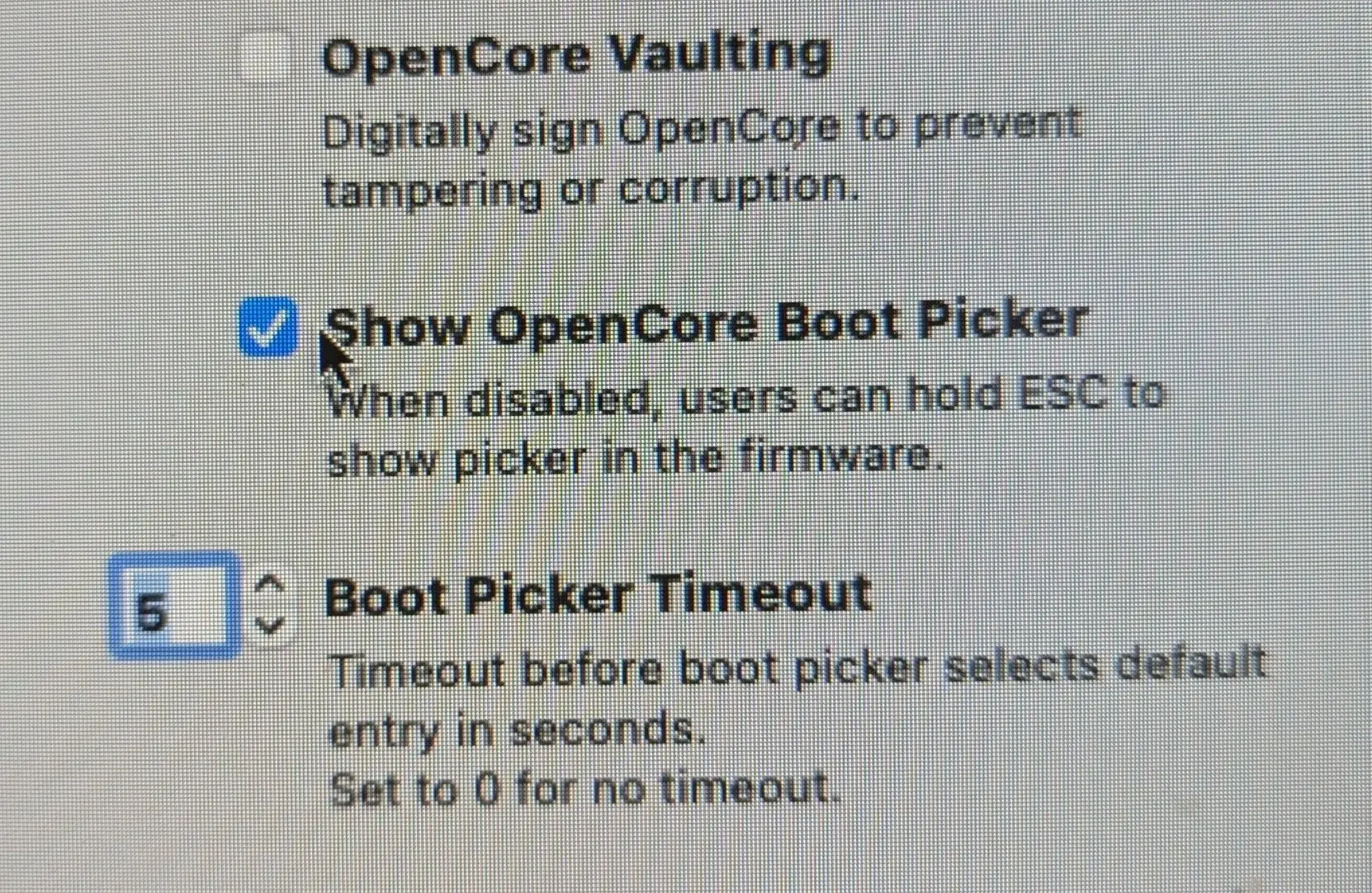
OCLP explains that System Integrity Protection often has to be lowered on machines that need root patching, especially on Ventura and newer for unsupported systems. Do not change SIP, security settings, boot picker or root patching manually just because a random guide says so. Use OCLP defaults for the model unless you know exactly why you are changing them.
If the Mac will not boot after changes, Intel Macs can often show boot choices by holding Option at startup. Apple silicon uses a different method: hold the power button until startup options appear. Do not erase disks, reinstall or format before data and FileVault are understood.
7. How to decide whether it is worth it
OpenCore can make sense when the Mac has a healthy SSD, enough memory, good battery, normal temperature and you need newer Safari, apps or security level than Apple offers. It makes less sense if the machine is already too slow, gets hot, has poor battery, has little RAM, lacks SSD or is used for work where stability matters more than newest macOS.
When to get help
Get help before updating if the Mac contains important files, FileVault is unclear, the model is not confirmed supported, the internal drive seems unstable, or you are unsure about EFI, root patches, SIP or whether the machine should be upgraded at all. At EasyPC, you can bring the Mac in for a diagnosis so we can assess backup, drive health, battery, heat, model support and the right macOS path before anything risky is done.