
Mac repair starts with diagnosis, not parts. Two Macs can show the same symptom but have completely different faults. A MacBook that will not start may have a bad charger, battery, USB-C or MagSafe port, display, storage, liquid damage, firmware issue or logic board fault.
We are not an Apple-authorized repair shop. That means we are clear about method, parts, risk and price before further work. The first questions are always: which exact model is this, how important are the files, is FileVault enabled, and does repair make sense compared with value and need?
1. We start with model, files and FileVault
If the Mac starts, we identify the model from Apple menu > About This Mac and check macOS version, storage, battery and symptoms. If it does not start, we use the model number, serial number, underside of the machine or purchase information. Screen size and year are not enough, because small model differences can change parts and repair method.
Before reinstalling, doing disk work or disassembling, we ask whether the files matter. On newer Macs, storage can be soldered or strongly tied to the machine. If FileVault is enabled, the password or recovery key is needed for safe access. Without a backup, data should be assessed before anything changes the disk, firmware, user account or operating system.
When the Mac can start, we prefer to check Time Machine through System Settings > General > Time Machine before risky steps. If Time Machine asks to erase an external drive, the customer needs to know the drive is being prepared as a backup disk. Encrypted backup is useful, but the password must be stored safely; without it, the backup can be unusable when the files are needed.
You can always bring the Mac to EasyPC for a diagnosis if you are unsure about files, passwords, FileVault, battery or whether repair is worth it.
2. Startup: what the symptom tells us
If the Mac does not react to the power button, we start with charger, cable, port, battery and power circuit. Apple's own first steps are to check power connections, hold the power button for about 10 seconds and unplug accessories. If it still does not start, workshop diagnosis is better than continuing with random key combinations and charging attempts.
If the Mac turns on but stops at a question-mark folder, Apple logo, blank screen, Recovery Assistant, lock icon, Activation Lock or Internet Recovery, that means something different. The fault may be storage, macOS, firmware, display, keyboard, FileVault, account or logic board. We record the exact screen and choose the next test from that.
3. Apple Diagnostics is useful, but not the whole answer
When the machine can start far enough, we often run Apple Diagnostics. On Apple silicon, hold the power button until startup options appear, then press Command-D. On Intel Mac, hold D at startup, or Option-D if regular D does not work. In macOS Tahoe 26 and later, the test can also ask for a specific part test, such as display, keyboard or trackpad. Reference codes can point toward a component, but a passed test does not rule out liquid damage, intermittent SSD failure, heat issues, a bad cable or software faults.
4. Battery, charging and safety
Charging faults can come from the adapter, cable, USB-C port, MagSafe port, battery, liquid, dust in the port or logic board. We check the correct charger wattage, whether the Mac reports low power, whether the battery charges or only keeps the machine alive, and whether the port has physical damage. On USB-C models, different ports can behave differently if one port or one side is damaged.
On newer macOS versions, we separate fault messages from normal charge optimization. Slow Charger often points to an underpowered charger, cable, display or dock, while Charging On Hold, Charged to Limit and Charge Limit can be battery protection. On Apple silicon with macOS Tahoe 26.4 or later, charge limits can be set in Battery settings, and a Mac with both USB-C and MagSafe charges from only one source at a time.
A swollen battery is a stop point. Signs include a lifted trackpad, curved bottom cover, case that does not sit flat, sweet or chemical smell, or pressure marks. Do not press the case closed, heat the machine or keep using it. Bring it in so we can assess the battery and any damage to trackpad, keyboard or logic board.
5. Storage, SSD and data recovery
On older MacBook Pro machines and some MacBook Air models, the SSD or hard drive can often be removed or replaced. On newer models, storage is often soldered or tied to security chips, and data recovery can depend on the Mac itself starting or being repaired enough to unlock the disk. That is why we always ask about files before reinstalling or repairing the disk.
If the drive clicks, disappears, freezes during copying, takes unusually long or Disk Utility shows errors, recover files before stressing the drive further. The wrong order can make a possible recovery more expensive or impossible.
6. Cooling, fan and a slow Mac
A slow Mac is not always a macOS problem. We check free storage, login items, Activity Monitor, temperature, fan, dust and thermal paste. If the machine is quick when cold and slow when warm, cleaning and cooling often matter more than reinstalling. If the fan or heatsink must come out, the battery is disconnected and screws are sorted, because a wrong screw length or damaged ribbon cable can create a larger fault than the original issue.
7. Model differences decide price and method
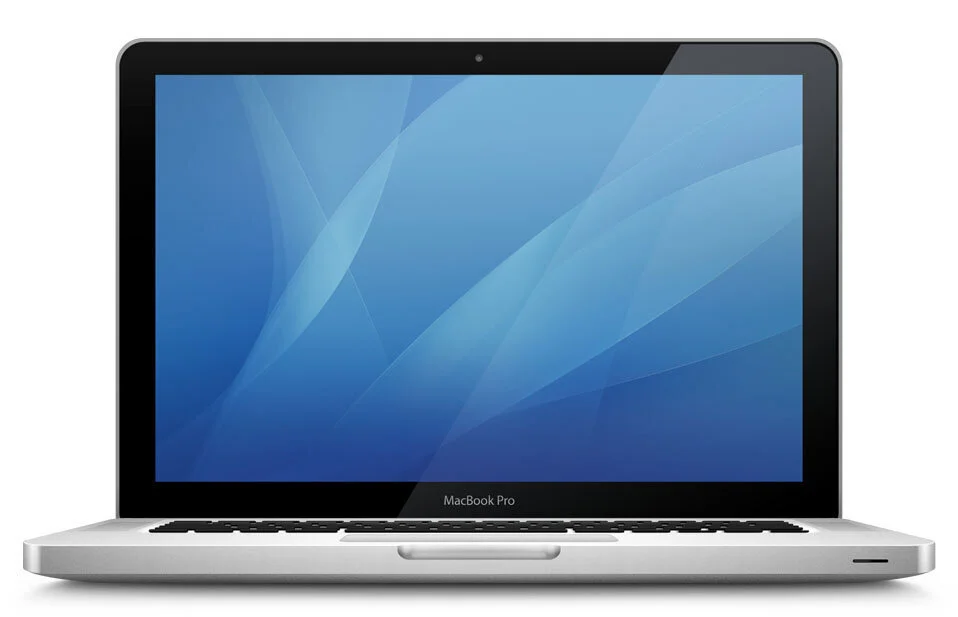
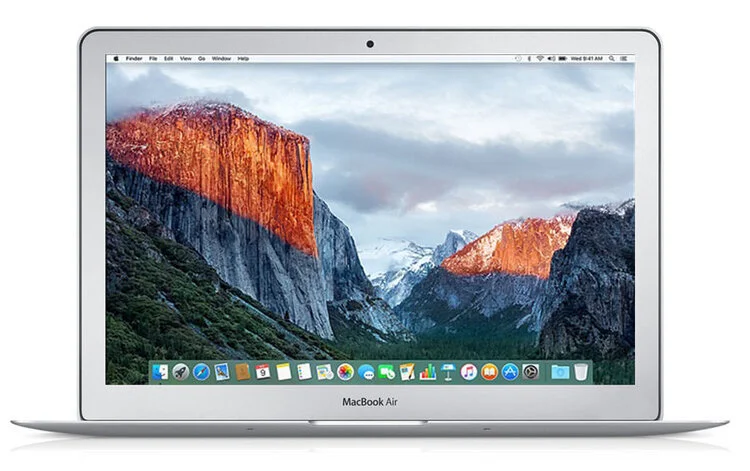
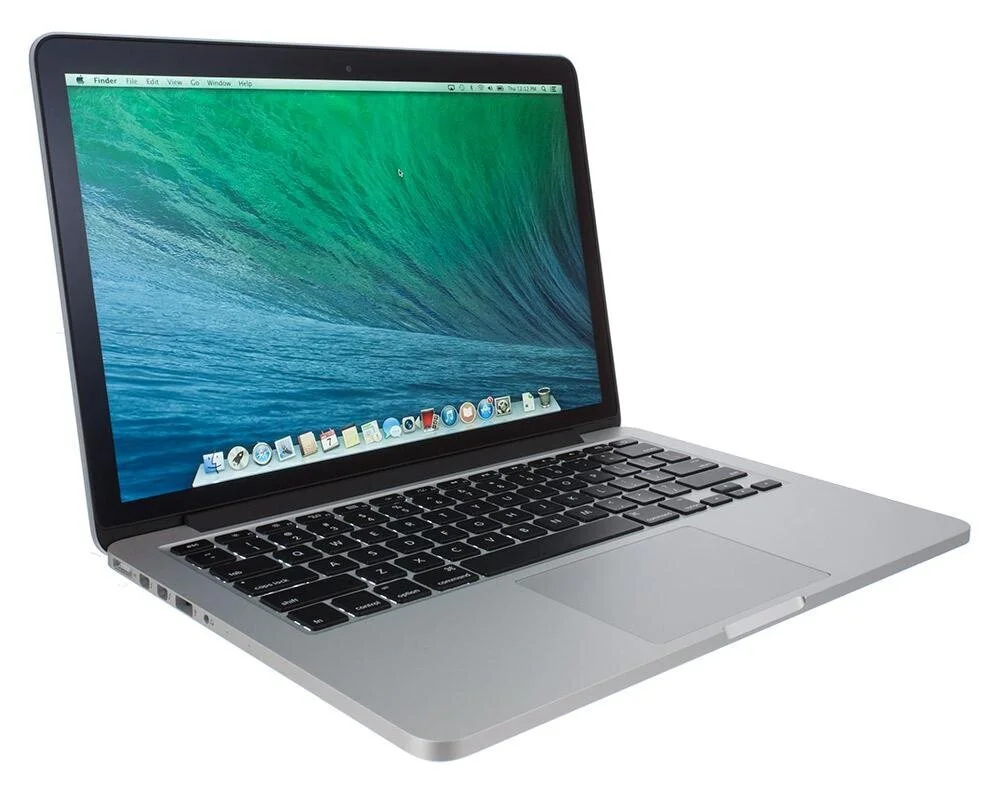
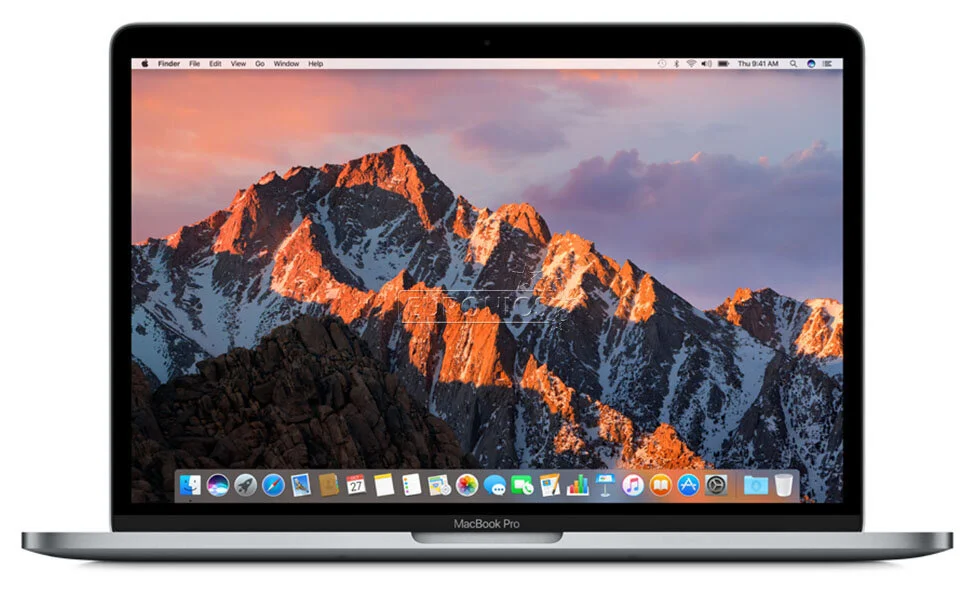
The 2012 non-Retina MacBook Pro often has replaceable SATA storage and memory. The 2013-2017 MacBook Air has soldered memory, but the SSD can often be replaced with the correct part or adapter. The 2013-2015 Retina MacBook Pro can be worth display, battery, SSD and cooling service on the right machine, but memory is soldered. 2016 and newer MacBook Pro models are tighter, with more adhesive, more fragile cables and more expensive parts.
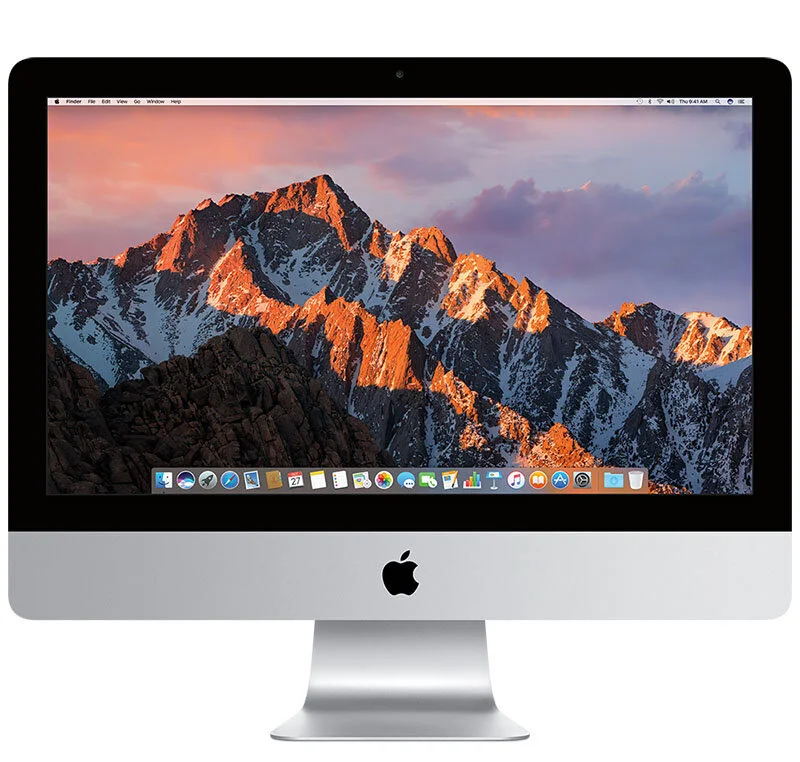
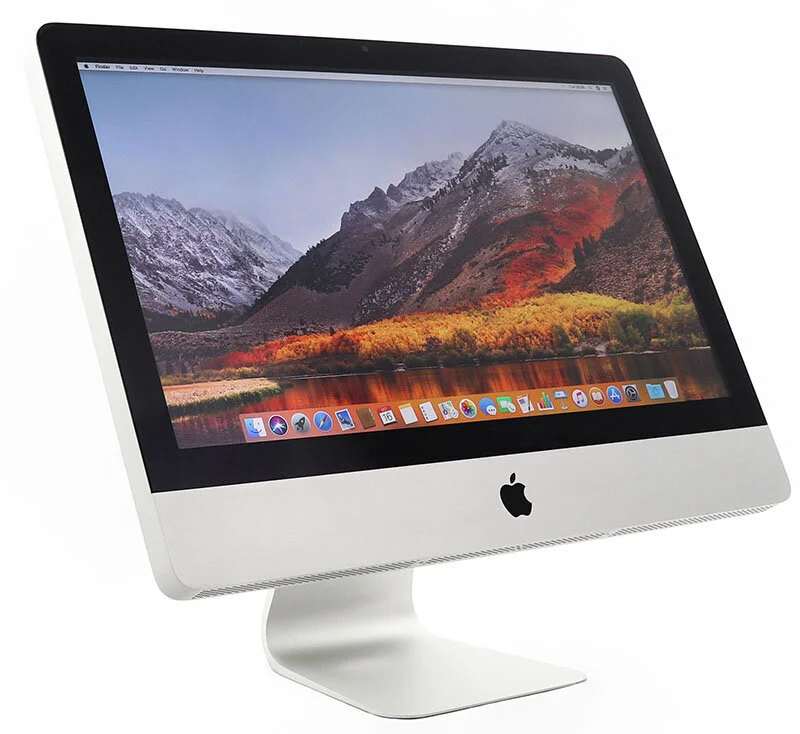
iMac models vary a lot too. Older iMacs can be easier to open, while newer models often have glued displays. Many iMacs shipped with mechanical hard drives or Fusion Drive long after laptops moved to SSDs. That is why we often assess SSD, cleaning, thermal paste and backup together when an iMac must be opened anyway.
8. Liquid damage and logic boards
After liquid damage, turn the Mac off and do not keep charging it. Do not put it in rice and do not use heat. Liquid can sit under shields, connectors and keyboard layers, and corrosion can develop even if the machine works during the first hours. Quick diagnosis improves the chance of saving both the machine and important files.
Logic board faults are assessed from symptoms, visible damage, power behavior, liquid indicators and whether data matters. Some faults can be repaired at component level or with donor parts, while others are not worth doing. We give price and recommendation before further work.
9. macOS, reinstalling and updating
If the issue is software, the right fix may be an update, recovery, reinstall or clean install. Apple describes reinstalling from macOS Recovery as a method that normally does not remove apps or personal data, but still recommends backing up first. Erasing in Disk Utility is different and can permanently remove files.
We also check which macOS version the model actually supports. Installing the newest unofficial version is not always right, especially on work machines that must stay stable. If OpenCore or another unofficial path is considered, backup, FileVault, model support and risk should be clear first.
What you get after diagnosis
After diagnosis, you get a concrete recommendation: repair, recover data first, upgrade SSD or battery, clean the cooling system, reinstall macOS, send it for more advanced logic board work, or skip repair. The goal is not the most parts, but the right action for the machine and your files.