
A PC fan should not be replaced just because the computer is loud. Fan noise can come from Windows activity, dust, a blocked heatsink, old thermal paste, an aggressive fan curve, or noise from a hard drive, power supply or GPU fan. The right first step is to find out whether the fan is actually faulty or simply working hard because the machine is hot.
1. Stop before opening the computer
Shut the PC down fully, unplug the charger or power cable, and let the machine cool before doing any physical work. On a laptop, the internal battery should be disconnected before working near the motherboard, but only if that model lets you do it without force and without bending the battery. Do not continue if the battery is swollen, there is liquid damage, you smell burnt electronics, screws are stuck, or you do not have the correct tools.
Make sure important files are backed up before opening the computer. Also check BitLocker or device encryption under Settings > Privacy & security > Device encryption, or search for BitLocker in the Start menu. Hardware changes can trigger a request for the recovery key, and without that key files can become inaccessible. If you are unsure, you can bring the PC to EasyPC for a diagnosis before taking the risk yourself.
2. Check whether fan replacement is actually right
Start in Windows 11 before taking anything apart. Press Ctrl + Shift + Esc to open Task Manager, open the Processes tab and sort by CPU, GPU, Memory and Disk. If Windows Update, OneDrive, a browser, a game, antivirus or another app is using heavy resources, the fan may be healthy and only responding to load. Close what you do not need, restart the PC, and see whether the noise becomes normal when usage drops.
Then go to Settings > System > Power & battery > Power mode. On a laptop, Best performance can create more heat and fan noise. Also open Windows Security > Device performance & health and check whether Windows reports storage, battery, app or system-service issues. Install normal Windows updates, and check Settings > Windows Update > Advanced options > Optional updates if a relevant driver update is missing.
Stronger signs of a failed fan include scraping, ticking, vibration, a startup fan error, a fan that stops and starts in jerks, or shutdowns while the fan does not spin even though the computer is hot. If the noise comes from the power supply in a desktop PC, do not open the power supply. Replace the whole power supply or have a repair shop assess it.
3. Find the correct part before more disassembly
Use the exact model number, service tag or serial number of the computer, and the part number printed on the fan if you can see it. Fans that look identical in a photo can have different connectors, thickness, screw positions, ducting, 3-pin or 4-pin control, or be integrated with heat pipes and a cooling plate. The wrong part can cause new noise, wrong speed control, poor cooling or prevent reassembly.
Take photos of cable routing, screw positions and tape before loosening anything. Many laptops use several screw lengths, and a screw that is too long in the wrong place can damage the motherboard, keyboard or display hinge area. Keep screws grouped by where they came from, and stop if a connector does not release with light pressure.
4. Desktop PC: identify which fan is the problem
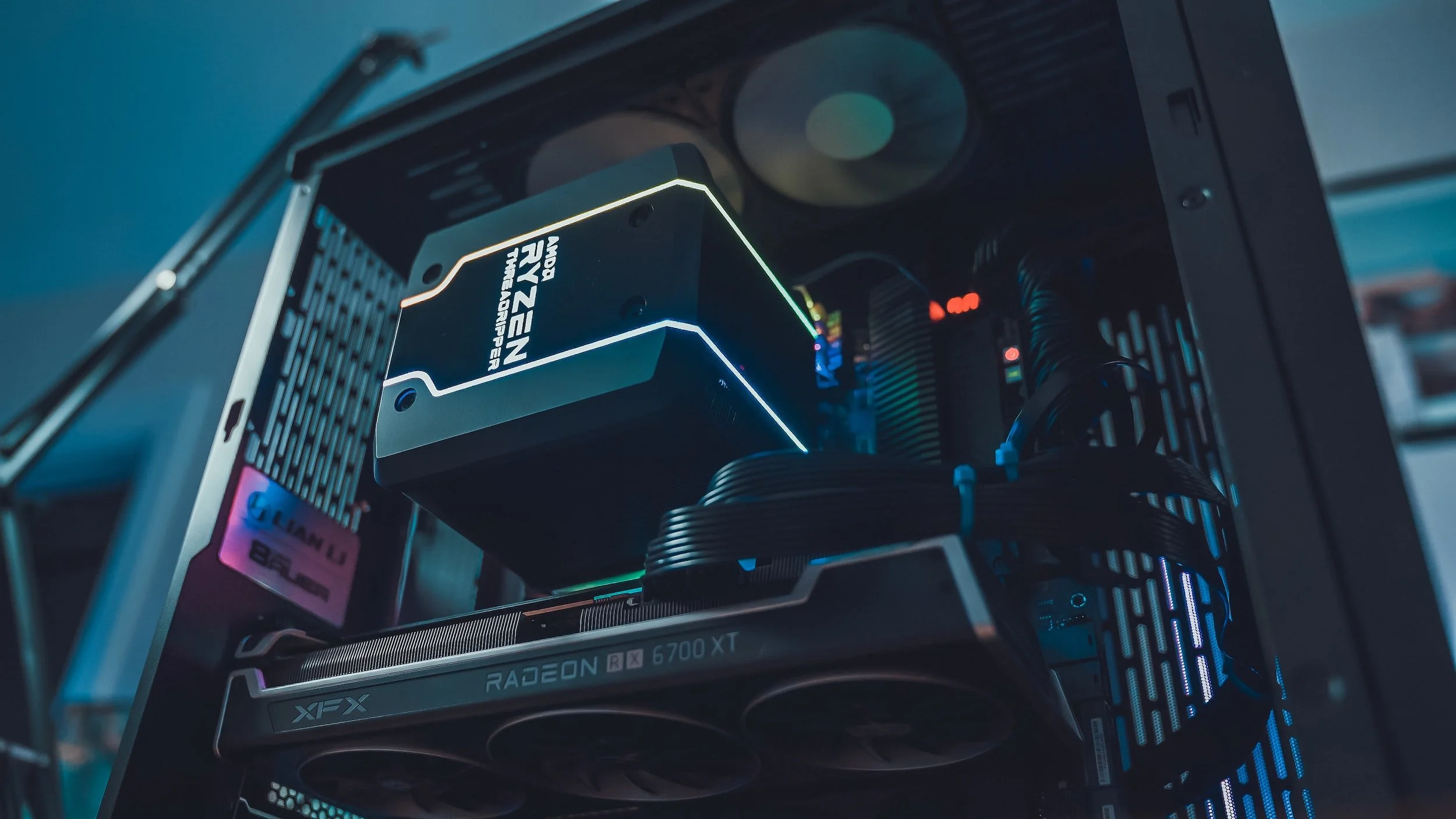
In a desktop PC, the noise can come from a case fan, CPU cooler, GPU, liquid-cooling pump or power supply. Case fans are often the simplest: remove the side panel, disconnect the fan cable from the motherboard or fan hub, unscrew the old fan and mount the new one with the correct airflow direction. Look for arrows on the fan frame and keep sensible airflow: intake at the front or bottom, exhaust at the rear or top.
CPU coolers often require new thermal paste if the cooling block is removed. GPU fans are more model-specific and may require the whole graphics-card cooler to be disassembled. Do not open the power supply. It can retain dangerous voltage even after the cable is unplugged, and a failed PSU fan normally means the power supply should be replaced as a unit.
After installation, the fan curve can often be adjusted in BIOS/UEFI or motherboard software. Look for terms like Fan curve, PWM, DC mode or Smart Fan. Change only one setting at a time, and do not set the fan so low that temperatures become unstable. Firmware and BIOS updates should only be done with the correct model, stable power, a backup and the BitLocker key available.
Connect the CPU fan to CPU_FAN, and case fans to SYS_FAN/CHA_FAN or the correct fan hub. A 4-pin PWM fan can often be controlled better than a 3-pin DC fan, but the motherboard must be set to the right mode. Do not connect a fan to an RGB header or force a connector that does not fit. Starting a PC without the CPU fan or on the wrong header can cause fan errors, high temperature or shutdowns.
5. Laptop: battery, screws and fragile cables
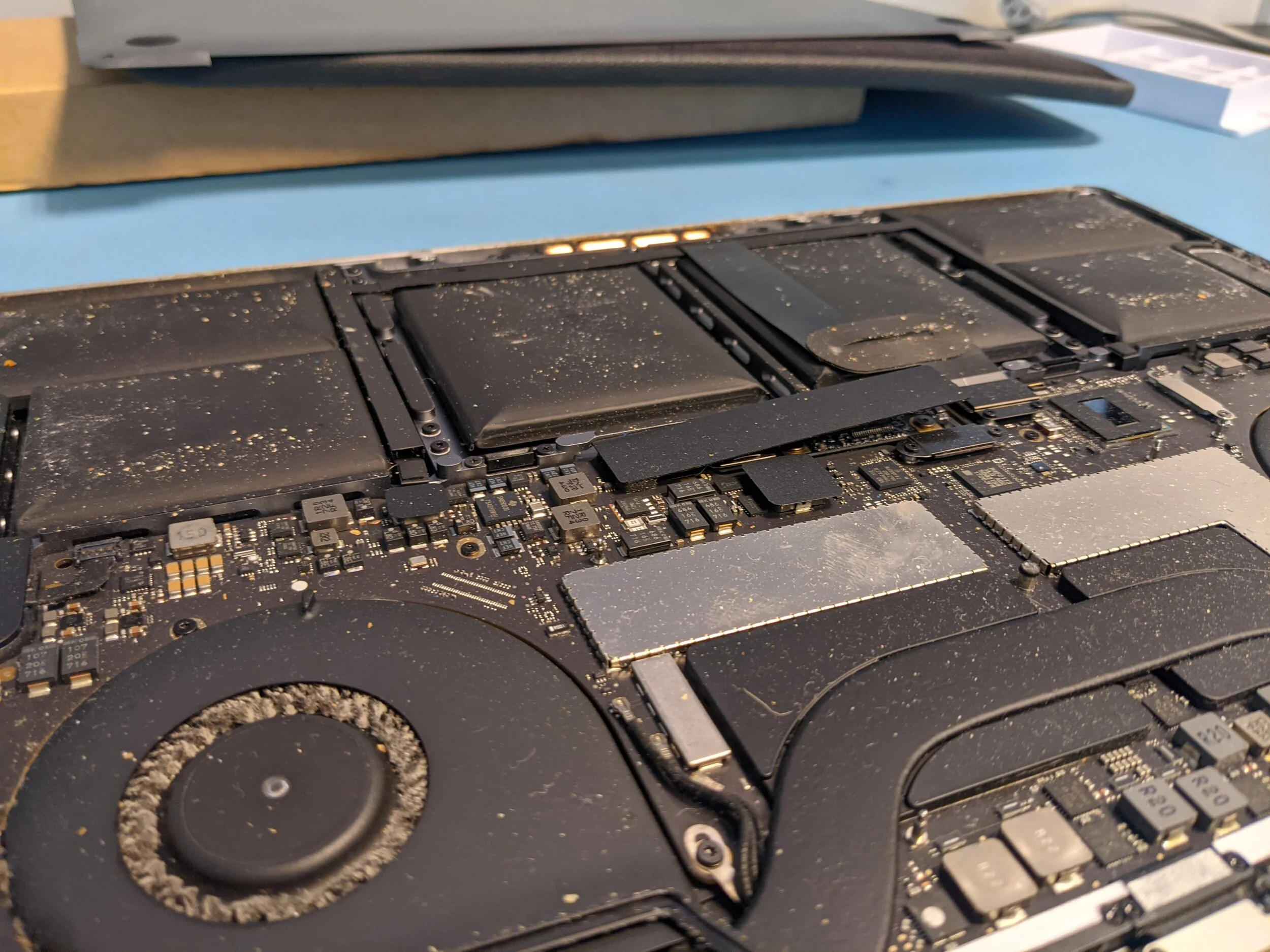
On laptops, the job varies a lot from model to model. Some have the fan directly under the bottom cover. Others must be almost fully disassembled, and on some models the fan sits under the motherboard or is part of the entire cooling module. Find a model-specific service guide before starting, and make sure you have the correct screwdriver, plastic pry tool, isopropyl alcohol, new thermal paste if the cooler must come off, and the exact replacement part.
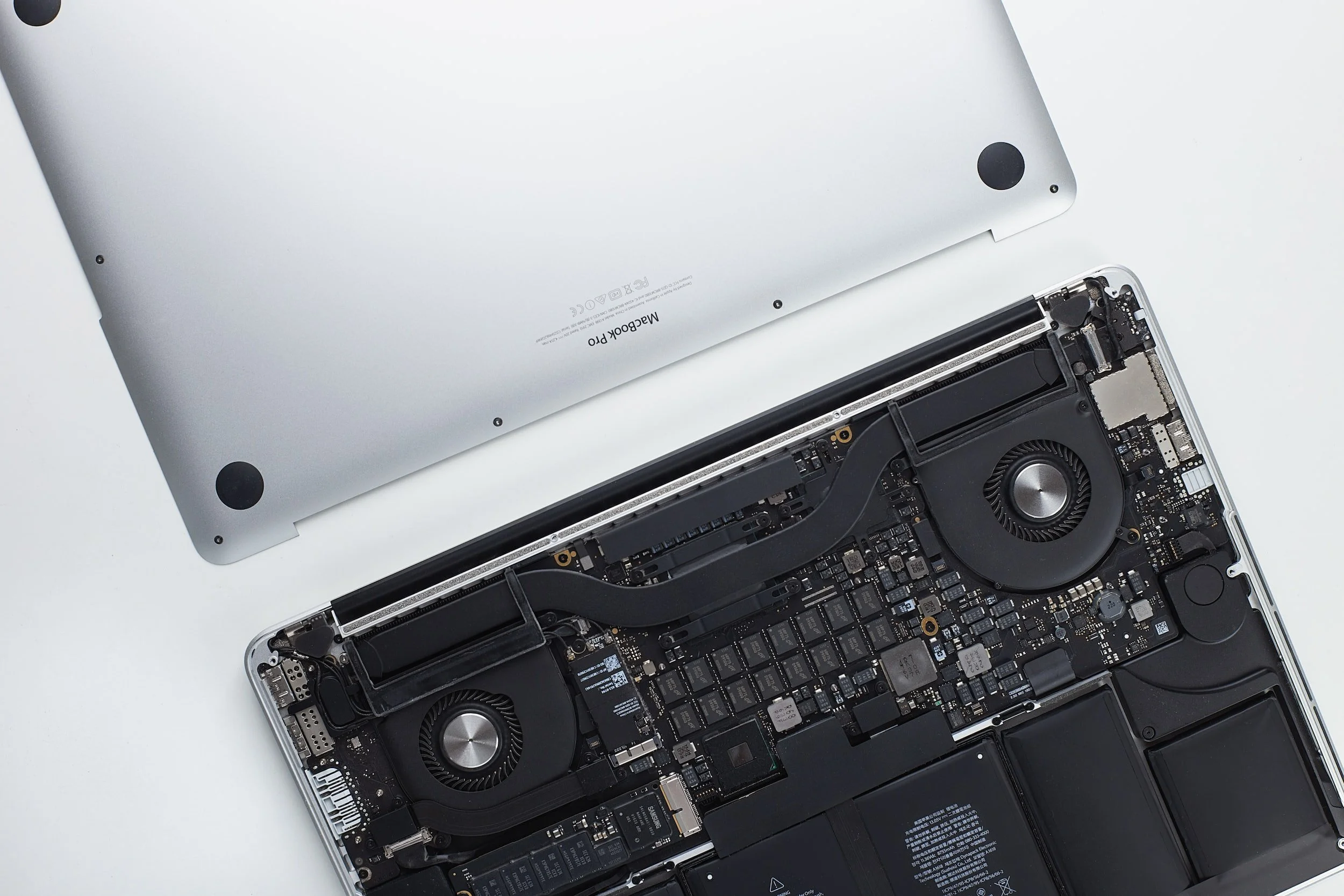
Lift the fan connector carefully and never pull on the wires. If the fan is held by tape, air ducting or heat pipe parts, loosen a little at a time. Do not bend heat pipes, do not use metal tools around the motherboard, and do not force the bottom cover if the clips will not release. Bring the machine in for a diagnosis if the battery connector is difficult, the fan sits under the motherboard, or you feel plastic or connectors starting to give way.
6. Thermal paste and thermal pads
If the cooling block is lifted from the CPU or graphics chip, old thermal paste must be cleaned off and replaced. Use a suitable cloth and isopropyl alcohol, then apply a small amount of new paste to the chip before placing the cooler straight back down. Too much paste, too little paste or uneven pressure can make temperatures worse than before the repair.
Many computers use thermal pads on memory chips, VRMs or other components. Do not replace those pads with normal thermal paste. If a pad tears or falls off, its thickness and position must be matched correctly, otherwise that component may not make proper contact with the cooler.
Test after assembly
Start the machine before everything is fully screwed shut, but make sure there are no loose screws, cables or tools inside. Check that the fan spins, does not scrape, and that temperatures stay stable during light use. If the machine shows a fan error, shuts down, smells hot, or the fan does not start, turn it off and check the connector, cable routing and part number before trying again.
Once the PC works, check air intake and temperature after a few minutes and preferably under moderate load. A new fan that immediately runs at full speed can mean a blocked heatsink, wrong fan curve, poor thermal paste contact, the wrong replacement part or a Windows background process still loading the computer.
When EasyPC should do the job
Bring the computer in if the fan sits under the motherboard, if a GPU fan must be replaced, if the noise comes from the power supply, if the battery is difficult to disconnect, or if you cannot identify the exact correct part. The same applies if the files are important, the BitLocker key is missing, or the PC shows signs of liquid damage, short circuit or swollen battery.
EasyPC can inspect the computer for free, confirm whether the fan is actually faulty, find the right replacement part and tell you whether the job is worth doing before you order parts or disassemble further. That is often cheaper than breaking a connector, damaging a battery or installing a fan that almost fits.